
How to Create an App Password for Gmail
Add an App Password
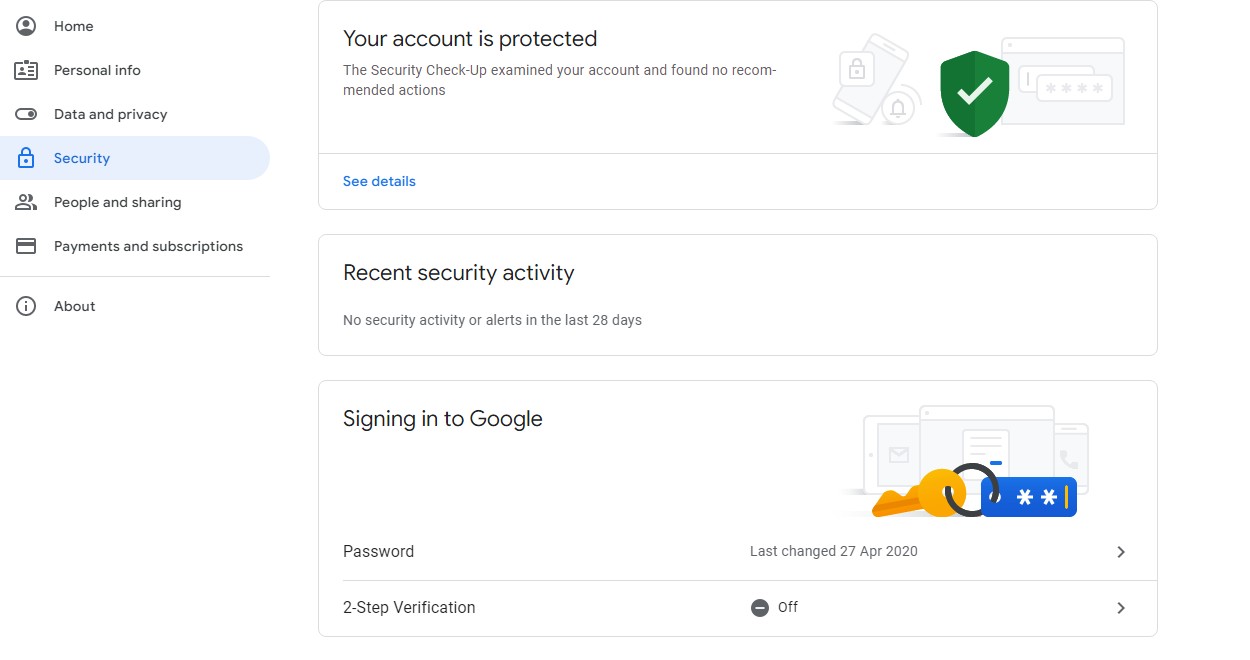
Note: Google now requires that you have 2-Step-Verification enabled before you can set up an application password.
Visit your App passwords page. You may be asked to sign in to your Google Account.
Note: If you are seeing a message “The setting that you are looking for is not available for your account.” you should enable 2-Step-Verification first.
In the Select app dropdown menu, choose the app you’re using. You can also select Other and enter you own custom app name.
In the Select device dropdown menu, choose the device you’re using. You can also select Other and enter you own custom device name.
What you select in these dropdowns actually has no bearing on the functionality of the app password. They are just used for your own guide and for Google to show you the appropriate instructions in the next step.
Click Generate.

In the Generated app password modal, copy your 16-digit password and paste it into your application.
Select Done.

After you’ve clicked done, you won’t see that App password code again. If you ever lose your app password, you can just generate a new one following the above steps.
Please keep the generated app password handy and ensure you have a copy of the password saved otherwise you will have to create a new one.
After this has been done we can setup the M1XEP module for email messages/notifications.
In order for email messages/notifications to work on the M1XEP you need to ensure you are running the latest firmare for the M1XEP module and the latest version of ElkRP Programming Software.
At the time of this guides creation the current version of M1XEP is 2.0.46 and the current version of ElkRP Programming Software is 2.0.40.
Open ElkRP Programming Software and connect to the panel through network connection.
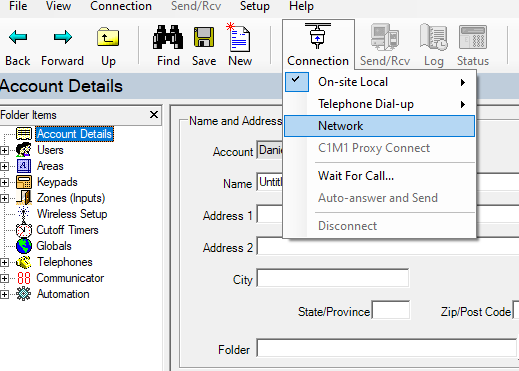
Once you are connected navigate to M1XEP Setup on the Account Details page.
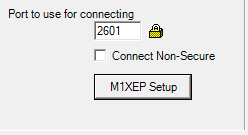
In M1XEP Setup navigate to the Email tab and enter your email settings that were setup previously.
Server URL/IP Address: smtp.gmail.com
*FROM* email address: youremail@gmail.com (the email address you created)
Port: 587
Username: youremail@gmail.com (the email address you created)
Password: your generated app password
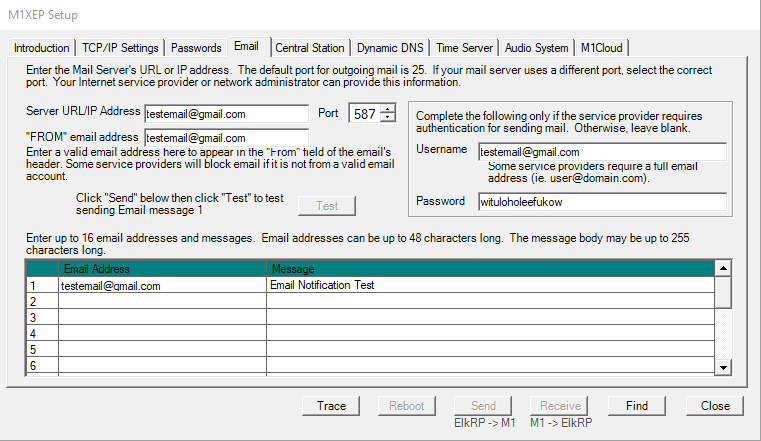
Once the correct email settings have been entered simply send the settings to the M1XEP module and save your database.
You can then click "Test" to test the email message that was configured.